
GitHub PRs
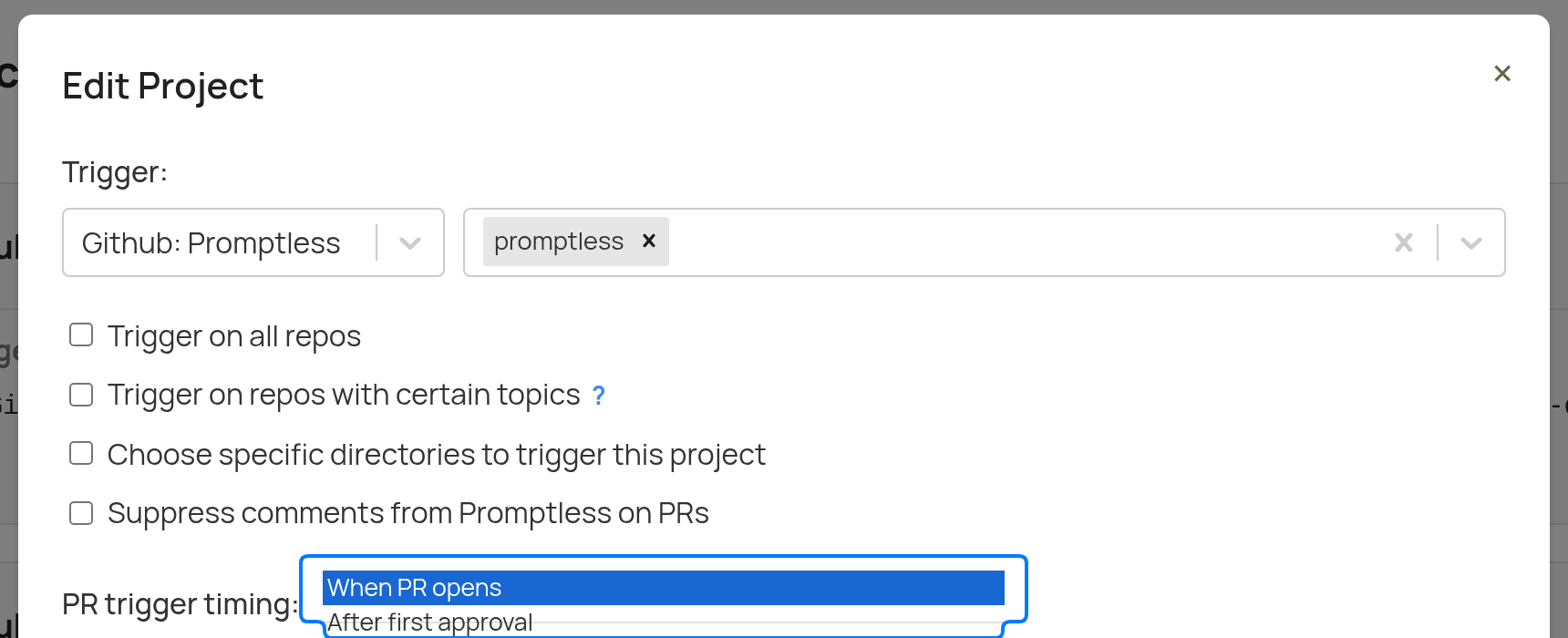
Promptless monitors your GitHub repositories for pull requests. You can choose when documentation updates trigger: when a PR is opened or when it receives its first approval.
Trigger Modes
Section titled “Trigger Modes”GitHub PR triggers support two modes:
Opened (Default)
Section titled “Opened (Default)”Triggers when a pull request is opened. This works well for teams that want documentation suggestions ready alongside code changes, giving reviewers time to evaluate both.
First Approval
Section titled “First Approval”Triggers when a pull request receives its first approval from a reviewer. Use this mode when you want documentation updates to start only after code has been reviewed, so Promptless analyzes final changes rather than work in progress.
The first-approval mode only triggers once per PR—on the first approval. Subsequent approvals or re-approvals after requested changes do not trigger additional documentation updates.
How It Works
Section titled “How It Works”When a pull request event occurs in your monitored repositories (either opened or first approval, depending on your configuration):
- Automatic Detection: Promptless receives notification of the new PR
- Analysis: The system processes the code diff, PR title, and PR description to understand the context
- Relevance Assessment: Promptless determines if the changes require documentation updates
- Suggestion Creation: If relevant, Promptless creates documentation suggestions
Note
Information from PRs is processed in real-time and not stored by Promptless. The analysis happens only when the configured trigger event occurs.
Configuration
Section titled “Configuration”Configure GitHub PR triggers in your project settings:
- Select GitHub as your trigger source
- Choose the trigger mode: When PR opens (default) or After first approval
- Choose which repositories to monitor
- Optionally configure directory-specific triggers (see below)
- Set auto-publish preferences
Directory-Specific Triggers
Section titled “Directory-Specific Triggers”You can configure Promptless to only trigger when changes are made to specific directories within your repositories. This is particularly useful when you want to focus documentation updates on changes to certain parts of your codebase.
To set up directory-specific triggers:
- When creating or editing a project, select the GitHub trigger option
- Check the “Choose specific directories to trigger this project” option
- Enter the directory paths you want to monitor, separating multiple paths with commas
- Save your project configuration

When trigger directories are specified, only PRs that contain changes to those directories will be considered, and updates to other files will be ignored.
Repository Topics
Section titled “Repository Topics”If you have many repositories, you can use GitHub topics to control which ones trigger Promptless. This is especially helpful for organizations with dozens or hundreds of repos where only some need documentation automation.
-
Tag your repositories in GitHub: Add topics to the repositories you want Promptless to monitor (e.g., “docs-watch”, “promptless”). To add topics to a repository, go to the repository’s main page and click “Add topics” in the About section.
-
Configure your project: When creating or editing a GitHub project, check the “Trigger on repos with certain topics” option and enter the topic(s) you want to monitor. You can specify multiple topics, and Promptless will trigger on any repository that has at least one of those topics.
-
Manage through GitHub: To add a new repository to Promptless, tag it with the configured topic in GitHub. To remove a repository, remove the topic from the repository settings.
Learn more about GitHub repository topics in the GitHub documentation.
Auto-publish Mode
Section titled “Auto-publish Mode”When auto-publish is enabled for your project, Promptless automatically creates a new PR in your documentation repository with suggested changes.
Source PR Comments
Section titled “Source PR Comments”Promptless posts a summary comment on source PRs linking to any documentation changes. This keeps documentation updates visible alongside the code changes that triggered them.
The comment links directly to the documentation suggestions, so reviewers can see proposed updates while reviewing the code.
Tip
Slack notifications are separate from source PR comments and are always sent according to your notification settings.
Suppressing Source PR Comments
Section titled “Suppressing Source PR Comments”Enable the Suppress comments from Promptless on PRs option in your project configuration to prevent comments on source PRs. Documentation suggestions are still created normally.
This option is commonly used:
- During pilot or onboarding periods, before Promptless has been introduced to the broader engineering team
- On public repositories, while keeping comments enabled for private repos
Contact help@gopromptless.ai to enable this option for your project.
Draft Pull Requests
Section titled “Draft Pull Requests”Warning
Promptless automatically skips draft pull requests. Documentation updates are only triggered when the pull request is marked as ready for review.
Requesting Documentation via PR Comments
Section titled “Requesting Documentation via PR Comments”Beyond automatic triggers, you can request documentation updates by @mentioning Promptless in a comment on any source pull request.
Tag Promptless in a comment on a source PR to request documentation work:
@promptless please update the docs for this API changePR comment mentions are useful when:
- A PR was created before your trigger was set up
- You want documentation for a PR that’s already merged or closed
- The automatic trigger didn’t fire for your PR
- You want to provide specific instructions about what to document
Setup Instructions
Section titled “Setup Instructions”To connect GitHub to Promptless, see the GitHub Integration setup guide.