
Teach conventions with feedback
Feedback on a Promptless suggestion does two things at once: it fixes the suggestion in front of you, and—when you save it—it teaches Promptless a durable convention that it applies to every future suggestion. You can give feedback from the Promptless dashboard in four ways—request changes, inline feedback, overall comments, and close feedback—or directly in a GitHub PR comment. Every method lets you request changes on the suggestion you’re reviewing, and some also let you save that preference so Promptless applies it to future suggestions.
1. Request changes
Section titled “1. Request changes”Use the Request Changes button at the top of any suggestion to request updates. Provide multiple pieces of feedback at once, and Promptless will address them all together.
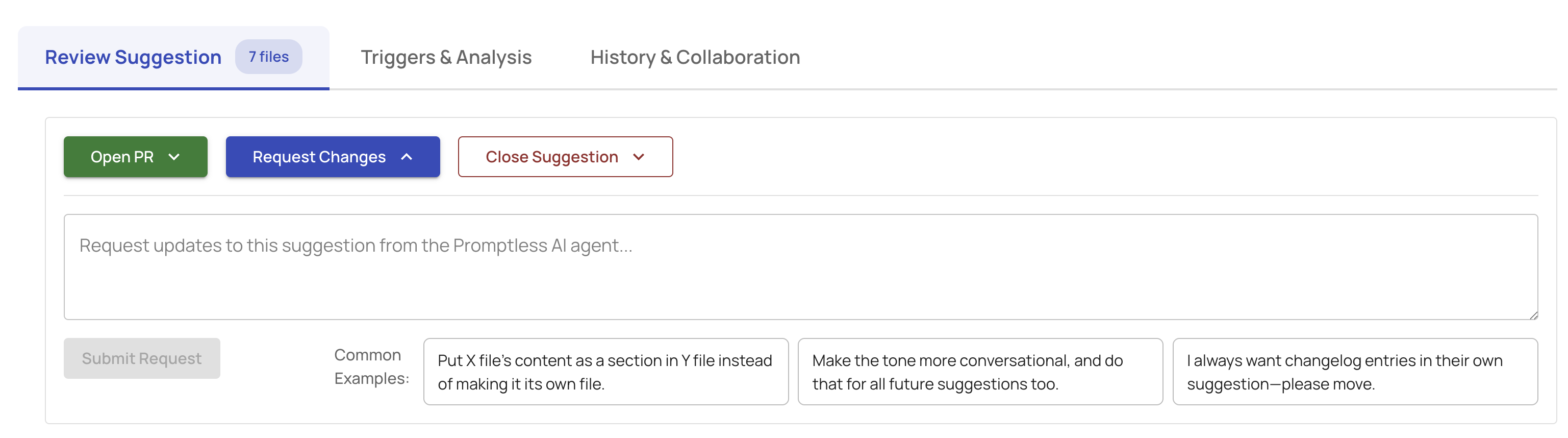
The interface includes common examples to get you started:
- “Put X file’s content as a section in Y file instead of making it its own file”
- “Make the tone more conversational, and do that for all future suggestions too”
- “I always want changelog entries in their own suggestion—please move”
Click Submit Request to process all your feedback.
2. Dashboard inline feedback
Section titled “2. Dashboard inline feedback”Add feedback to specific files or sections within a suggestion. Highlight text in any file or click a line number to select the entire line, then click Add Comment to provide context-specific input.
Dashboard inline feedback is separate from GitHub’s inline comments and appears only in the Promptless web interface.
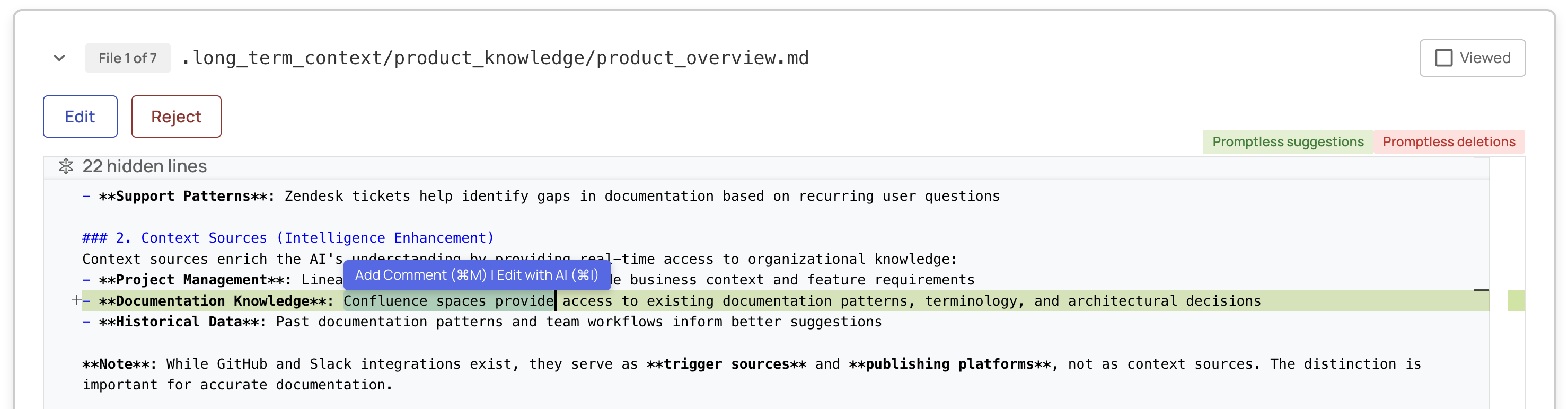
When you add a comment, check Request changes on this suggestion to queue your feedback for Promptless. You can add multiple comments across different files, and they persist across page refreshes until you’re ready to submit them all together.
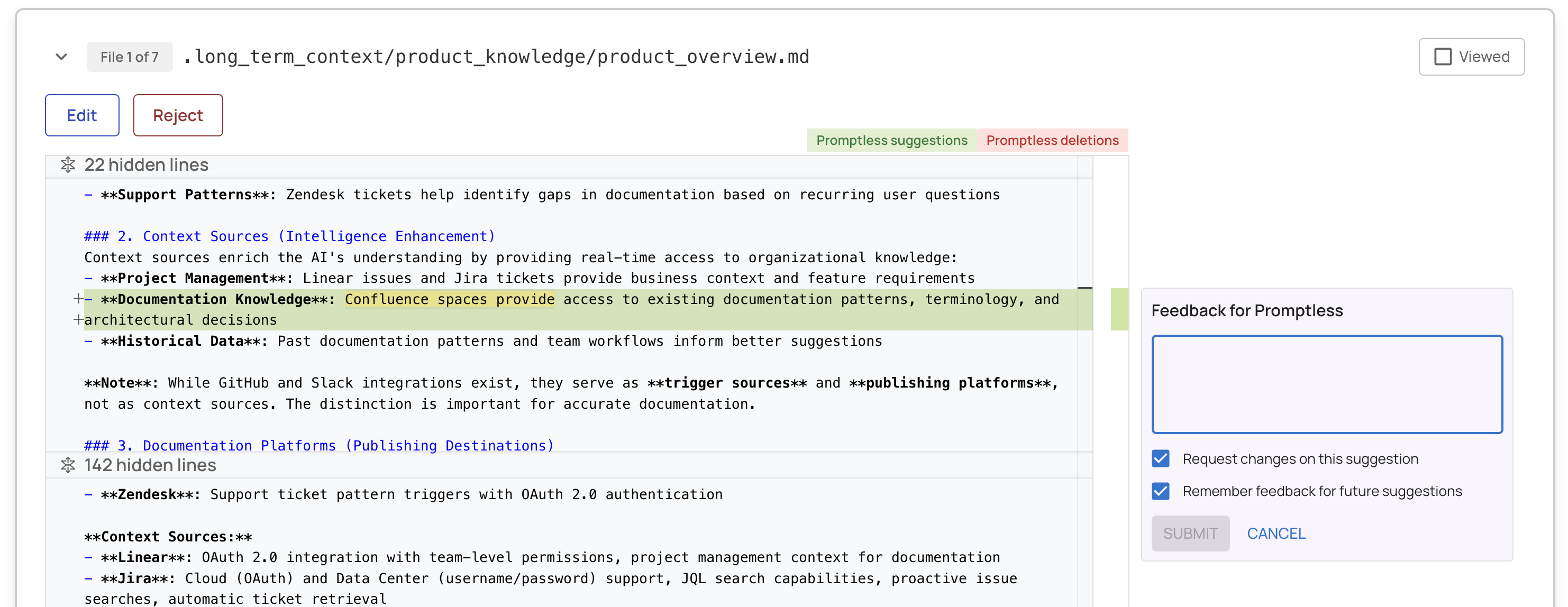
Once you’ve added your request-change comments, a banner appears at the bottom showing how many comments are saved. Click Submit Feedback when you’re finished reviewing. Editing and publishing actions are temporarily disabled while Promptless processes your feedback.
3. Overall comments
Section titled “3. Overall comments”Leave general feedback about a suggestion without targeting a specific file. This is useful for high-level guidance or when your feedback applies to the entire suggestion.
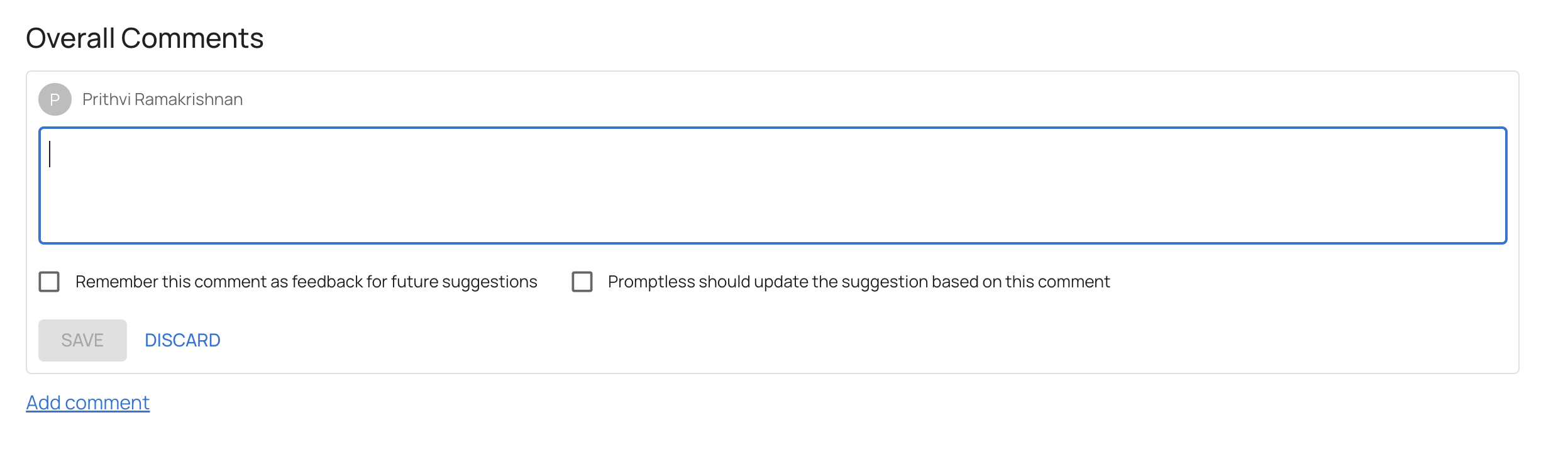
Like dashboard inline feedback, you can check Request changes on this suggestion to queue the feedback for submission.
4. Close suggestion feedback
Section titled “4. Close suggestion feedback”When closing a suggestion, provide feedback about why you’re rejecting it. This helps Promptless improve future suggestions.

Select one or more reasons:
- “I copied this change into my docs editor”
- “This change is incorrect”
- “This change is too insignificant”
- “This change was covered in another Promptless suggestion”
- “This is already in my docs”
- “This change is self-explanatory and doesn’t need docs”
You can also provide additional context in the feedback field. Check “Remember this feedback for future suggestions” to save your preferences.
5. GitHub PR comments
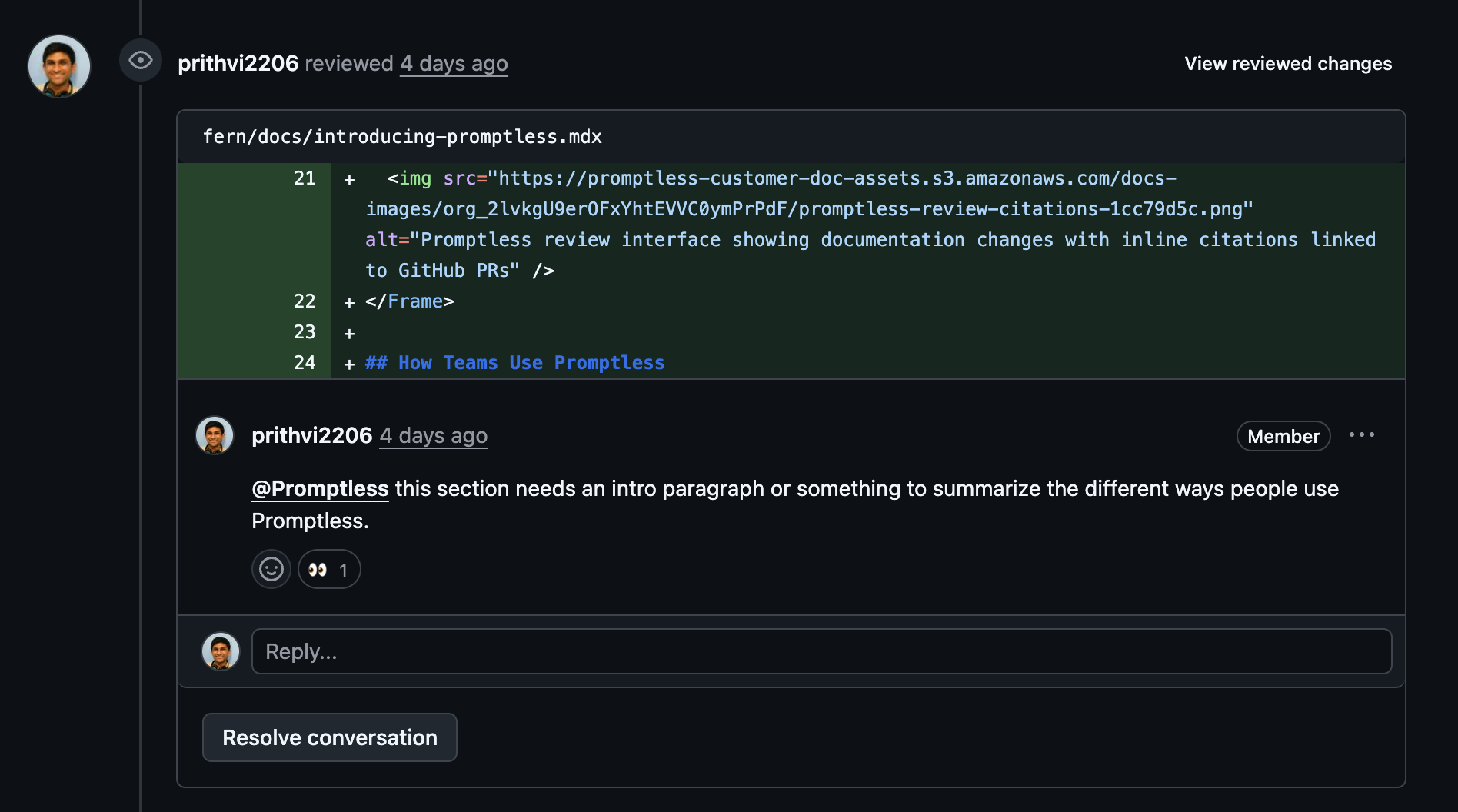
Section titled “5. GitHub PR comments”After Promptless opens a documentation PR, you can leave feedback directly in GitHub. GitHub comments are separate from dashboard feedback—they won’t appear in the Promptless web interface, but Promptless will still process them. Tag @Promptless in any line comment to request changes.
Promptless reads all previous comments in the thread to understand context, so you can give brief instructions like “same change here” or “apply this to the other sections too.”
How feedback improves future suggestions
Section titled “How feedback improves future suggestions”Every piece of feedback you submit helps Promptless learn your preferences. When you request changes, reject suggestions with explanations, or edit proposed content, Promptless updates its understanding of your documentation standards, writing style, and content preferences.
Need help? Contact us at help@gopromptless.ai.